Friday, 13 February 2015

FYP2 - Week 2 (2)

This function is to plug the Arduino Ethernet shield into an Arduino Uno, then connect it to an Ethernet cable and finally test whether the Ethernet shield is working or not. These are the first things that people need to do after buying an Arduino Ethernet shield for the first time.


But, in this case, I use DFRduino Ethernet Shield. This new version Arduino Ethernet shield which is DFRduino Ethernet Shield V2 supports Mega both 1280 and 2560 and also supports SD card read/write as well.  The V2 Ethernet Shield is fully compatible with Ardunio Ethernet Shield. People can do exactly the same thing as the original one and more affordable price.

Tuesday, 10 February 2015

FYP2 - Week 2

ARDUINO ETHERNET SHIELD

This shows how to set up an Arduino with Ethernet shield as a web server. The web servers in this are used to serve up web pages that can be accessed from a web browser running on any computer connected to the same network as the Arduino.

Some of the Arduino web server pages allow access to the Arduino hardware – this allows hardware to be controlled (e.g. switching on and off an LED from the web page) and monitored (e.g. reading the state of a switch and displaying it on a web page).

This is required to build a web server including all the technology such as HTTP, HTML, CSS, JavaScript, etc. It starts with the very basics of hosting a simple web page on the Arduino and advances step-by-step from there.

Hardware Components
The hardware required for following this series of tutorials is:
  • An Arduino board such as the Arduino Uno
  • An Arduino Ethernet shield
  • An Ethernet cable, wired straight for connecting to your network router
  • A USB cable for powering and programming the Arduino
  • A micro SD card, e.g. a 2Gb card that is SPI compatible – only required for some of the servers
  • A computer with a micro SD card slot or a card reader with a micro SD card slot – only required for SD card servers

Hardware Setup
Before starting:

  1. Plug the Ethernet shield into the Arduino Uno R3, connect it to the network and test it.
  2. Test the SD card in the Ethernet shield. 

Sunday, 8 February 2015

FYP2 - Week 1(2)

Picture below is among the coding for enroll the fingerprint that i had been try in a few weeks

Among the coding in Arduino and it success in uploading, it means the coding is right and suitable in Arduino and fingerprint 


In this picture above is the serial monitor after done uploading the coding and success. Now, the fingerprint can be use but first enroll first to identify the identity of each person thumbprint. After image of fingerprint is taken twice for better result, the image of fingerprint will be stored. But also sometimes the fingerprint image can be also may not recognized it. For example, your index finger is scratched or injured, or even dry and dirty. For solution, you can add or delete additional fingerprint at any time.

Saturday, 7 February 2015

FYP2 - Week 1


In this week, I had been testing the Arduino and fingerprint to design the circuit in breadboard 


Design in breadboard before upload in arduino 
The circuit in breadboard
After upload 


Sunday, 21 December 2014

Week Fourteen


This week which is I been testing the fingerprint sensor on Arduino Uno R3 whether it is working or not..


It's working perfectly.. 
Now, I can begin my prototype hardware and software project for FYP2 in next semester 2015.. I hope it goes smoothly..

Wednesday, 10 December 2014

week thirteen


ANDROID SOFWARE DEVELOPMENT KIT (SDK)

The Android Software Development Kit (SDK) allows developers to create applications for the Android platform. The Android SDK includes sample projects with source code, development tools, an emulator, and required libraries to build Android applications which are written using the Java programming language.

Much of the info in this guide comes from the documentation on the Android Developers site. Follow this quick guide to successfully install Android SDK on your computer. If you are new to it, it is a bit complicated to install compared to your usual program. However if you are good in following instructions, it’s as easy as A-B-C. 


INSTALLING THE ANDROID SDK

     1. Get ready your computer

Before anything else, see to it that your computer meets the minimum system requirements. Specifically, you might need to install the Java Development Kit (JDK), if you don’t have it yet.

The following outlines the system and software requirements for developing Android applications using the Android SDK.

     2. Download the SDK Starter Package

The SDK Starter Package is not a full development environment. It only includes the core SDK Tools, which you can use to download the rest of the SDK components (such as the latest Android platform).

To get the latest version of the SDK starter package, go to the Android SDK download page page and download the package for your machine’s operating system.

     3. Install the Android SDK manager

Download Android SDK.
  • Install the SDK. The SDK doesn’t work properly when it is installed in a path with spaces (“Program Files (x86)”). It is recommended to install it to a custom folder similar to C:\Android.
  • Install the platform tools and at least one platform image. You can use API 8 or above.
  • Exit Android SDK Manager


     2.  Install the Android packages
  • Copy all files in ‘copy_to_sdk’ and paste it into D > android_sdk > sdk4.
  • Restart Android SDK Manager.


     3. Launching Android SDK and AVD Manager


    4.  After install and configure path


Friday, 5 December 2014

Week Twelve


JAVA


What is Java technology and why do I need it?
-Java is a programming language and computing platform first released by Sun Microsystems in 1995. There are lots of applications and websites that will not work unless you have Java installed, and more are created every day. Java is fast, secure, and reliable. From laptops to datacenters, game consoles to scientific supercomputers, cell phones to the Internet, Java is everywhere!

Is Java free to download?
-Yes, Java is free to download. Get the latest version at java.com

Why should I upgrade to the latest Java version?
-The latest Java version contains important enhancements to improve performance, stability and security of the Java applications that run on your machine. Installing this free update will ensure that your Java applications continue to run safely and efficiently.


Installaling JAVA (JDK)


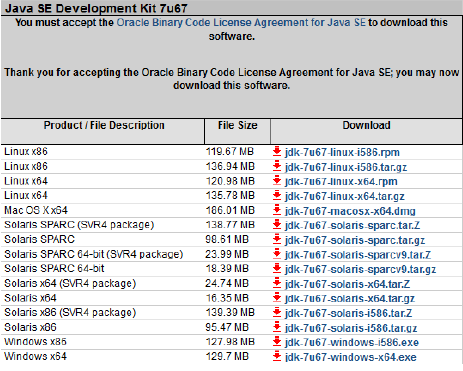
     1. Install Java JDK v7


Check the Accept License Agreement button.
  •  Select "Windows x86 (32-bit)" in the platforms list (also for 64 bit machines).
  •  Download the file and install it.
  • You can also install the 64-bit version. In that case Android SDK may fail to find the JDK. Follow these steps to fix it.


     2. 


     3. 


     4.


For more details, click the link below for video tutorial installing Java(JDK)